In order to activate the project tab in OpenJanela, the customer has to be set as a builder.
In customer management, go to the details tab
Click on the Builder checkbox
Save changes
Step Two
Create new Project
Go to the Documents tab
Click on new
Step Three
Create project attributes
Attributes Define how the project is Organized, for example Buildings and Facades, or Floors.
In the example we will use here, we will create 2 buildings – Bldg 1 with 2 Floors and Bldg 2 with 1 floor.
Click on new attribute as Building 1 and Parent attribute as “None”. Save attribute.
Step Four
Add items to the project
Add items as you would normally do.
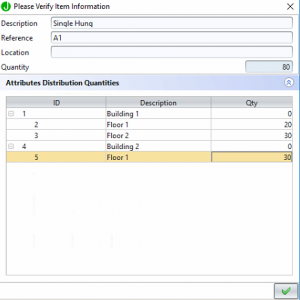
At the time of Saving, you will notice that the Save dialog asks for the Qty per Floor (attribute).
Enter the Qty Required for each “Window/Product design and Size” – Usually these are detailed in the project Schedule supplied by the builder. For example A1 Or A2, etc. Save the Line Item
Step Five
Create Project Phases
On the project header, select Phases tab.
Select thew New phase button
Enter a description
Enter date required
In then attributes section, you will find the items available to add into the phase.
Select the desired items from the “Available” column and click the “>” button to add to the “Selected” column.
Step Six
Click Save to update the project.Projects
Step Seven
Mark the project as won by clicking the “Approve” button.
This will make all phases available to be released as individual orders.
Step Eight
Click on “Release Phase” button to show the available phases to be released.