
Quote custom windows and doors accurately by confirming dimensions and options, checking the calculated price, and reviewing the customer document.
Follow one made-to-order casement window from the first measurements to a quote the customer can review. The example shows which details to check before moving an approved quote into an order.
What do you need before you price a custom window?
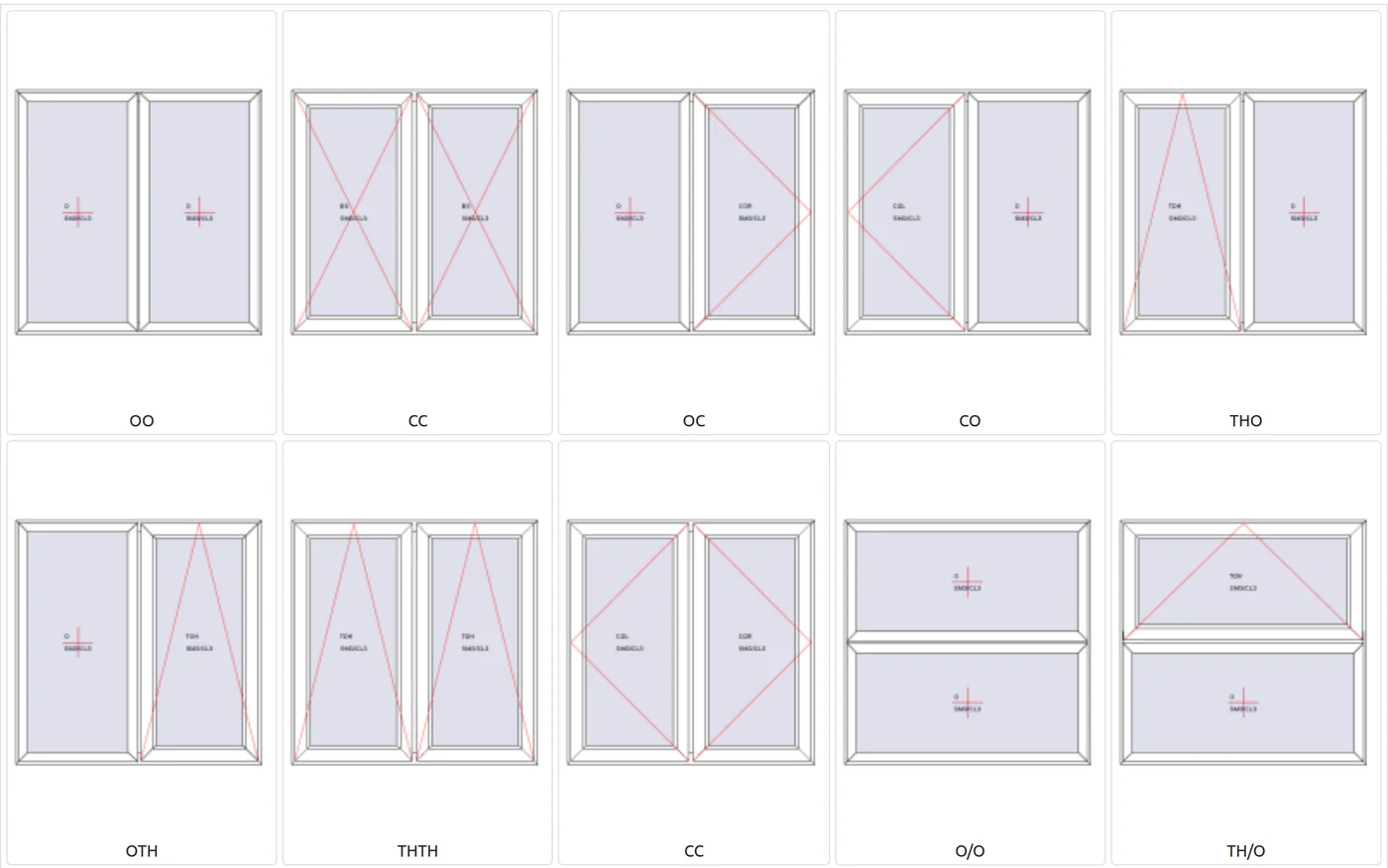
Start with the customer and the project, the number of units, the dimensions and the product series. Confirm which way the window opens and which reference view your team uses. If the customer requests special glazing, a particular finish or an optional handle, collect those choices before you prepare the estimate. A sketch or marked-up drawing can help resolve an ambiguous opening direction.
How does a configured unit become a quote?
- Start the quote. Select the customer and check the commercial details, including currency, taxes and terms. Confirm the unit of measurement before adding dimensions to the quote.
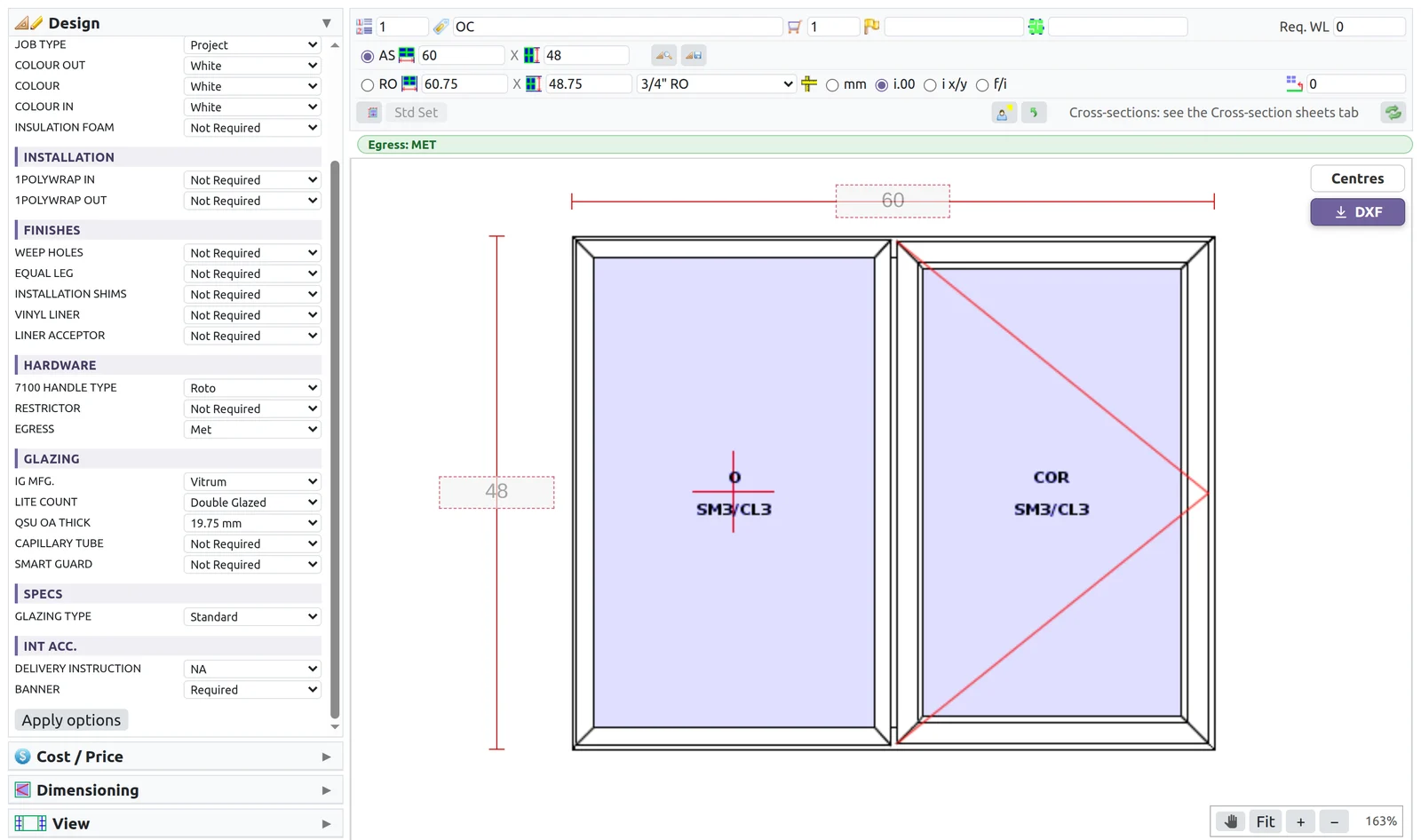
- Configure the item. Choose the casement series, dimensions, handing and glazing. Check the drawing against the request and review the available options for that product series.
- Review the calculated price. Check the material and labor details against the pricing setup, then review any applicable discount and the document total. If a change in glazing affects the price, make sure the quote reflects the option you intend to sell.
- Review the customer document. Make sure the quantities, descriptions and selected options match the configuration. Once the customer approves the quote, confirm it into an order so the approved specification can move into production.
This is an illustrative workflow. The available options and figures depend on your product series and pricing setup. The OpenJanela setup checklist describes how to test quote pricing and order confirmation with your own data.
What should you check when the customer requests a revision?
Suppose the customer wants a different glass package. Review the configured item, its drawing and the price together, then check the quote document before sending the revised offer. If you want to keep the original proposal available for comparison, OpenJanela documents a copy workflow that creates a separate document. Identify the version the customer actually approved before confirming the order.
What information belongs on a manufacturer’s window quote?
Put the details the customer must approve where they can easily find them. Give each window or door a recognizable reference, such as a room or opening identifier, and show the quantity, series, unit dimensions and selected options next to it. Use the same labels on the drawing and the quote. For openings with similar sizes, a clear reference can prevent a customer from approving the wrong glazing, color or opening direction.
Separate the unit price from any services or charges you need to explain, such as freight or installation when applicable. Check that the commercial document describes what your company is offering and which items need to be confirmed before order release. If a customer has given preliminary dimensions, identify them as preliminary. The estimator should know who will check the final dimensions and when the quote must be updated.
How do costs and pricing rules affect a custom window estimate?
Start by distinguishing the cost behind the unit from the price quoted to the customer. A configuration can bring different components and fabrication requirements into the estimate. Review the applicable inputs, such as material and labor, and then confirm which pricing rule, customer discount or other commercial terms apply. The OpenJanela estimating software page describes support for configured bills of materials, cost breakdowns and price books.
Worked example: a glass upgrade on a two-window quote
| Quote option | Quantity | Unit price | Line total |
|---|---|---|---|
| Base glazing | 2 | $480 | $960 |
| Upgraded glazing | 2 | $515 | $1,030 |
In this fictional example, the glass upgrade adds $35 per unit or $70 across the line. The prices exclude taxes and separate charges. Check the quantity, unit price and line total after an option changes. Before sending the quote, verify that the customer document identifies the glazing included in the price.
A total can look reasonable even when one input is wrong. If a cost is missing or unexpectedly zero, check the relevant part cost and pricing configuration before sending the quote. The OpenJanela setup test describes common configuration issues to investigate. Capture the item, customer and option that reproduce the issue so the person managing the rules can review it.
How can you quote alternatives without confusing the customer?
When a buyer is choosing between two glazing packages or finishes, make the choice explicit next to the price and show the part of the specification that changes. If you present an upgrade separately, identify which unit it applies to and whether the difference is shown per unit or for the entire line. Use clear language for any assumptions about delivery, color or other requested options.
When you copy a quote to preserve the earlier offer, give the new document a clear identifier and check the customer and prices before you send it. If you copy it for a different customer, review the applicable price level, currency and taxes again. Once the customer makes a choice, record it against the final version the production team will receive.
What should happen between quote approval and order confirmation?
Compare the accepted quote against the drawing, quantities and customer instructions one last time. If measurements, handing or glass have changed since the customer reviewed the document, resolve that difference before confirming. Make sure the person confirming knows which customer approval to use and how to find it. This review is especially useful when one salesperson starts the quote and a different person prepares it for release.
Confirm the approved specification into an order according to your company’s process. Then ask production to review one item and confirm that the design and options match the quote. The OpenJanela manufacturing workflow explains how the approved order can feed materials, cut lists and production batches.
How should you compare quoting software options?
Bring a familiar standard unit and one option change that normally requires manual work. Ask the demo team to show the configured design, reprice the revised item, and generate the customer document. Have a salesperson check the document and a production lead identify what information the approved order carries forward. Note any part of the workflow that would depend on module access or how your product rules are set up.
Use the same test across software options so your team can compare the result. Capture whether each tool handled the original request, the revision and the approved handoff, and record which outputs needed manual work. That gives you a practical way to decide whether the software fits your estimating team and factory.
How can you test quoting software with your own products?
Bring a product series, a typical customer request and a price or discount rule your team uses. Ask to see the same item configured, priced and reviewed in the quote. Then check what the factory receives using the window manufacturing BOM and cut list guide.
Explore OpenJanela window and door estimating software to see how the workflow fits your team.